
Download ColorZilla – Advanced Eyedropper, ColorPicker & Page Zoomer
Overview
ColorZilla is a lightweight, free add‑on for Windows browsers that brings professional‑grade color‑picking, gradient analysis and page‑zoom capabilities straight to your web‑surfing workflow. Developed by Iosart, this tool has been a staple for designers, developers and hobbyists since its first appearance in 2006. With more than 6,300 installations worldwide and a steady stream of daily downloads, ColorZilla has earned a reputation for reliability across diverse markets such as Bangladesh, India and the Netherlands.
The current stable build, version 2.0.2, was released on July 20 2009 and introduces full compatibility with Firefox 3.1 along with a handful of bug fixes that improve stability on legacy systems like Windows 98 and earlier. Because the add‑on is built as a browser extension rather than a heavyweight desktop program, it occupies minimal disk space and loads instantly, making it an ideal companion for anyone who needs instant access to color values while browsing the web. Whether you’re extracting a hex code from a logo, copying an RGBA gradient, or zooming in on a pixel‑perfect layout, ColorZilla delivers a seamless experience that feels native to the browser environment.
Its English‑only interface keeps the learning curve shallow, allowing users of all skill levels to start harvesting colors within seconds of installation.
Key Features
- Eyedropper Tool: Click anywhere on a web page to capture the exact color under the cursor, with instant copy to clipboard in HEX, RGB or HSL formats.
- Page Zoomer: Zoom in up to 50× on any section of a page, making pixel‑perfect inspections fast and accurate.
- CSS Gradient Analyzer: Detect and copy complex CSS gradients, including vendor‑prefixed syntax, directly from the page source.
- Palette History: Store up to 20 recent colors in a convenient palette panel for quick reuse.
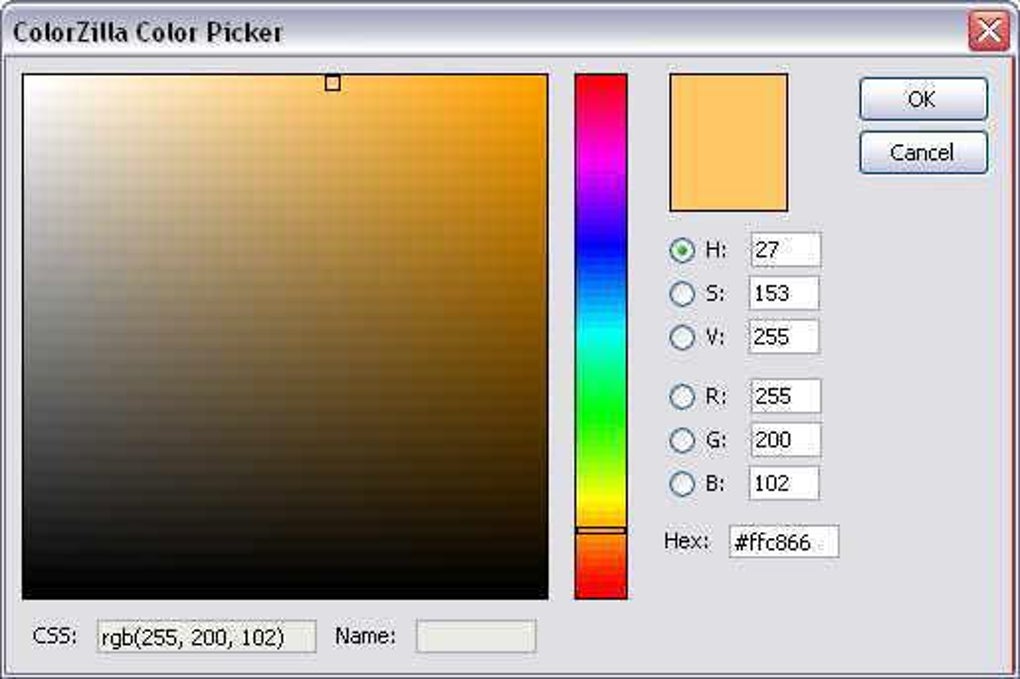
- Color Picker Panel: Open a floating window that lets you type or adjust colors manually, with real‑time preview.
- Keyboard Shortcuts: Fully customizable hotkeys for the eyedropper, zoomer and palette, speeding up repetitive tasks.
- Cross‑Browser Support: Works with Firefox, Chrome and other Chromium‑based browsers that accept legacy extensions.
- Lightweight Footprint: The extension occupies less than 2 MB on disk, ensuring fast load times even on older machines.
Beyond the headline tools, ColorZilla integrates smoothly with developer consoles, allowing you to paste captured color codes directly into CSS files or design software without leaving the browser. The extension also respects user privacy – no telemetry is sent back to the developer, and all operations happen locally on the client side. This combination of powerful features, tiny size and privacy‑first design makes ColorZilla a standout choice for anyone who regularly works with web graphics or UI mockups.
Installation & Usage Guide
Getting ColorZilla up and running is a straightforward process that takes only a few minutes, even on legacy Windows platforms. Follow these steps for a hassle‑free installation:
- Download the Add‑on: Visit the official ColorZilla download page and click the “Add to Firefox” or “Add to Chrome” button, depending on your preferred browser. The file is delivered as a signed .xpi (Firefox) or .crx (Chrome) package.
- Install the Extension: For Firefox, the browser will prompt you to confirm the installation; click “Add”. Chrome will automatically unpack the .crx file and ask you to confirm the addition to your extensions list.
- Enable the Toolbar Icons: Once installed, you’ll see the ColorZilla icons appear next to the address bar. If they are hidden, right‑click the toolbar area, select “Customize”, and drag the icons onto the visible toolbar.
- Configure Settings (Optional): Open the ColorZilla menu > “Options”. Here you can set your preferred color format, adjust keyboard shortcuts, and enable or disable the palette history.
- Start Picking Colors: Click the eyedropper icon or press the assigned shortcut (default Alt +
on Windows). Your cursor turns into a target; hover over any pixel and click to capture the color. The value instantly appears in a small tooltip and is copied to the clipboard. - Use the Page Zoomer: Click the zoom icon or press Alt + Z. Drag the zoom window over the area you wish to magnify. Use the mouse wheel to adjust zoom level on the fly.
- Access the Gradient Analyzer: Right‑click any element on a page and select “Analyze Gradient”. A dialog shows the full CSS gradient definition, ready for copy‑paste.
All features are accessible without leaving the browser, which means you can test colors in real time as you edit your stylesheet or design mockup. If you encounter any issues, the built‑in “Help” menu links to a comprehensive FAQ and troubleshooting guide, ensuring that even first‑time users can resolve common problems quickly.
Compatibility, Pros & Cons, FAQ & Conclusion
Compatibility
ColorZilla is designed for Windows environments dating back to Windows 98 and earlier, making it one of the few modern web tools that still supports legacy systems. It runs natively in Firefox 3.1 and later, as well as Chrome 5+ and other Chromium‑based browsers that honor legacy extensions. While the add‑on is not officially packaged for macOS, Linux or mobile platforms, users can run it in compatible Windows emulators or virtual machines. The extension’s lightweight architecture ensures smooth performance even on low‑end hardware, with negligible impact on browsing speed or memory consumption.
Pros
- Free and open‑source, with no hidden fees or subscription models.
- Instant color capture with multiple format options (HEX, RGB, HSL).
- Integrated page zoomer and gradient analyzer in a single package.
- Minimal disk footprint – under 2 MB.
- Works on very old Windows versions, preserving compatibility for legacy users.
- No telemetry – all operations stay local.
Cons
- Limited to Windows; no native macOS or Linux version.
- Interface has not been modernized since 2009, which may feel dated.
- Palette history limited to 20 colors; power users may desire larger storage.
- Some advanced features (e.g., multi‑monitor support) are missing.
Frequently Asked Questions
Is ColorZilla safe to download?
Yes. ColorZilla is distributed from the official website and signed extension stores, ensuring that the file is free from malware or unwanted bundled software.
Can I use ColorZilla on macOS?
The official version only supports Windows. macOS users can run it inside a Windows virtual machine, but there is no native macOS build at this time.
How do I change the default color format?
Open the ColorZilla menu, select “Options”, and choose your preferred format (HEX, RGB, HSL) from the dropdown list. Save changes and the new format will be used for all future captures.
Does ColorZilla work with the latest Firefox releases?
The last official update added compatibility with Firefox 3.1. While many users report it still functions in newer versions, some UI elements may appear out‑of‑date. For full compatibility, consider using a Chromium‑based browser where support is more current.
Is there a paid “Pro” version with more features?
No. ColorZilla is completely free, and the developer has not announced any plans for a paid tier. All core features are available to every user at no cost.
Conclusion & Call to Action
ColorZilla remains a reliable, no‑cost solution for anyone who needs fast, accurate color information while browsing the web. Its blend of an eyedropper, page zoomer and gradient analyzer, packaged in a tiny footprint, continues to serve designers and developers on older Windows machines where modern alternatives might be too heavyweight. While the UI shows its age and macOS support is lacking, the core functionality is solid, secure and free of any hidden fees. If you’re looking to streamline your workflow, enhance pixel‑perfect designs, or simply explore color palettes without leaving your browser, ColorZilla is a worthy addition. Download ColorZilla today, add it to your favorite browser, and start capturing colors with confidence.







